Log in to join the conversation.
Albi Bang! card box
Print Profile (2) All part in one file_AMS 20h 34m 531 g PETG
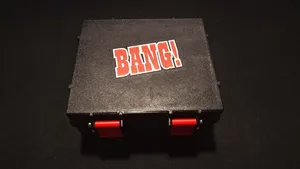
Plate Details (13)
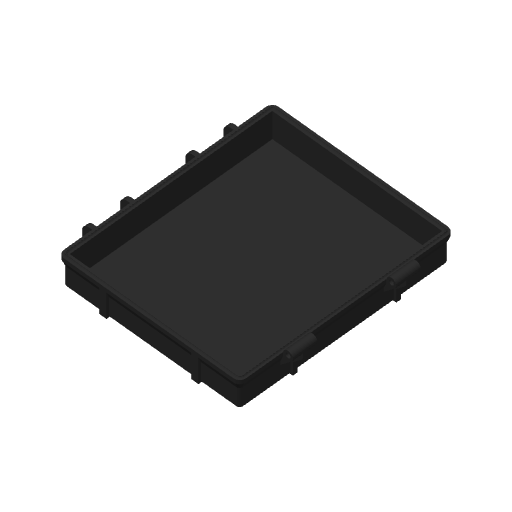
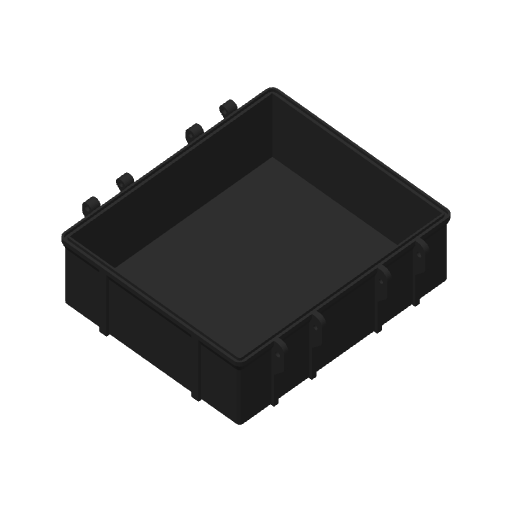
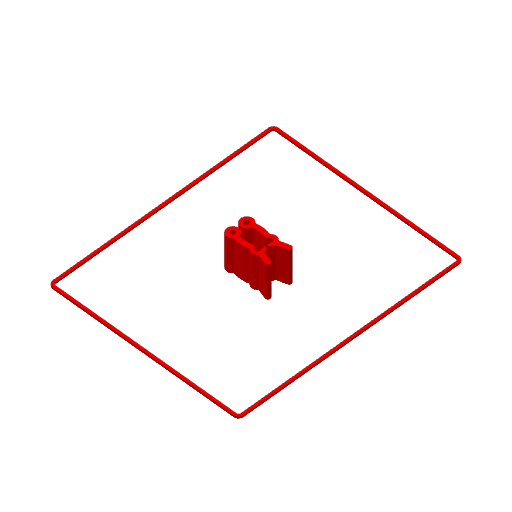
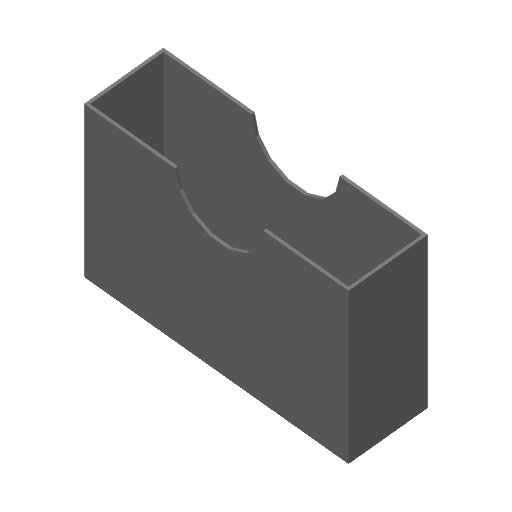
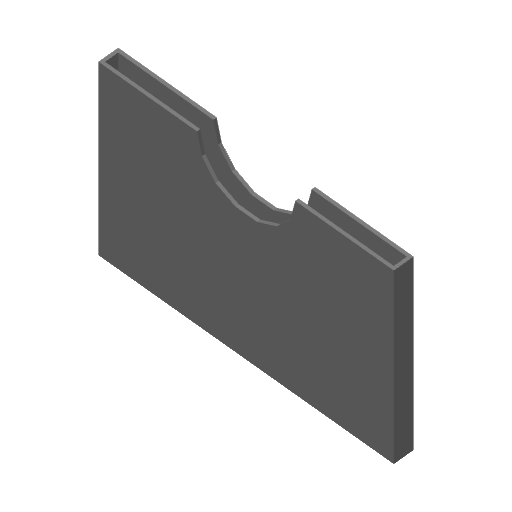
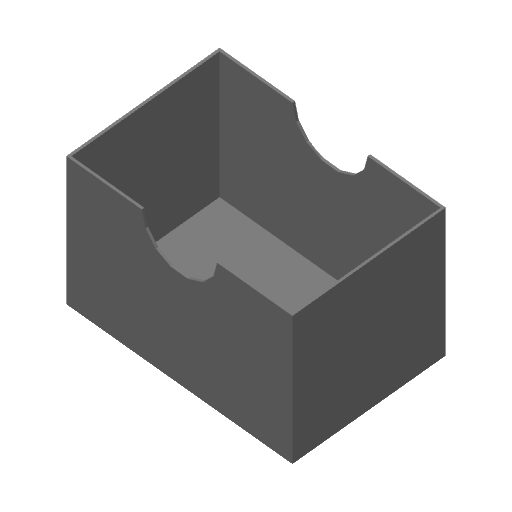
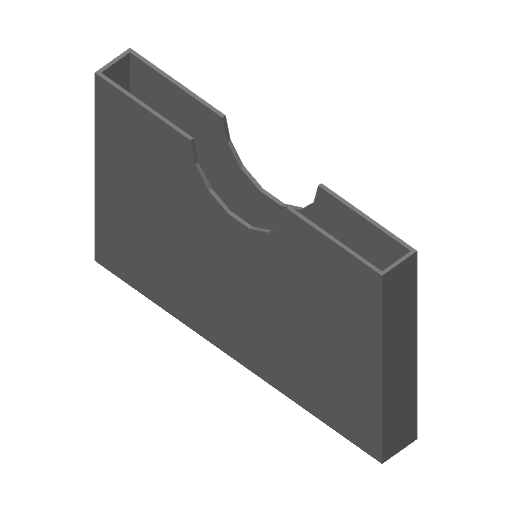
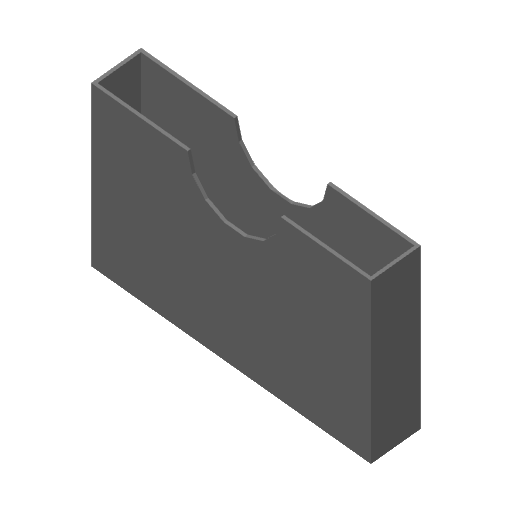
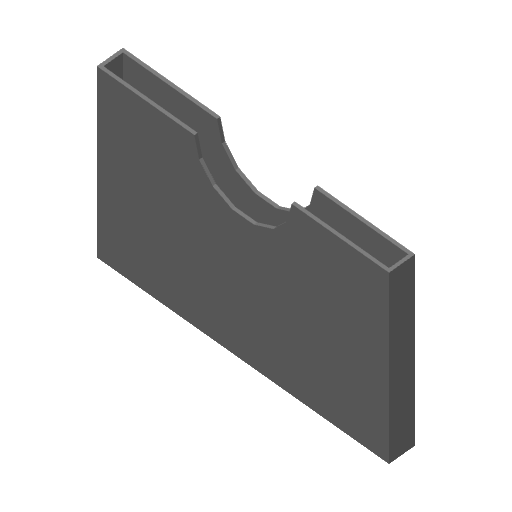
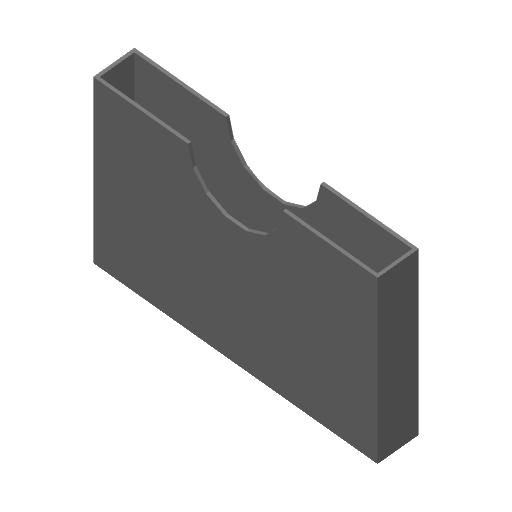
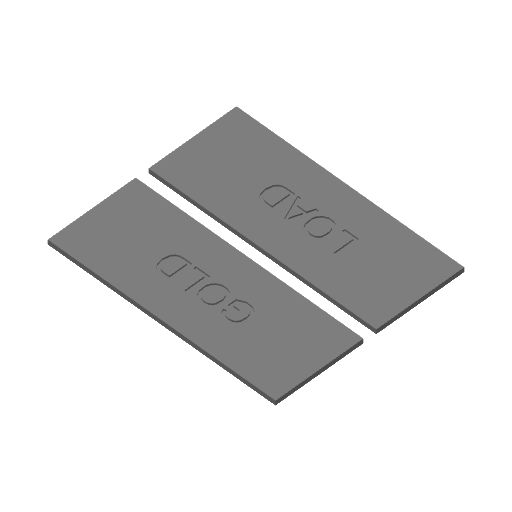
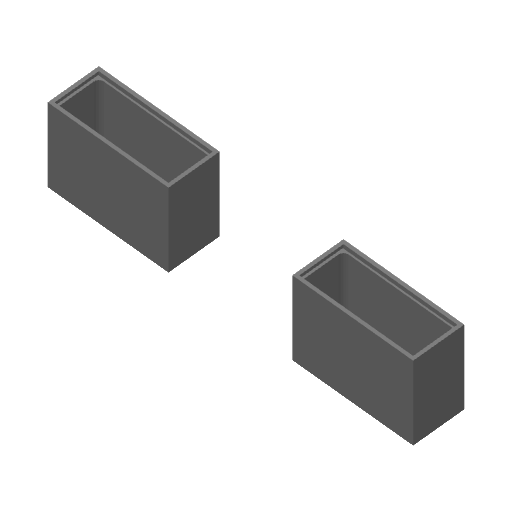
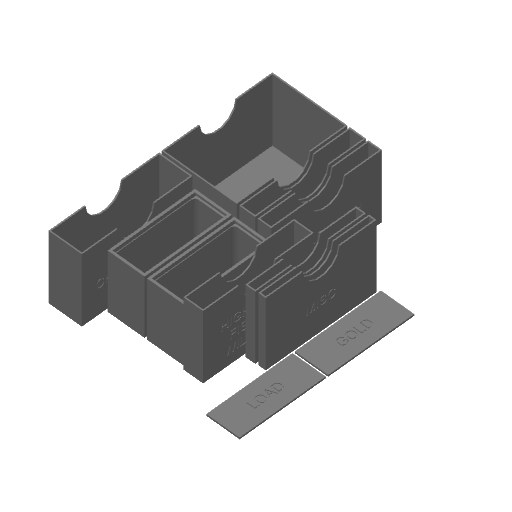
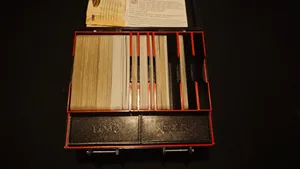
Plate Details (13)
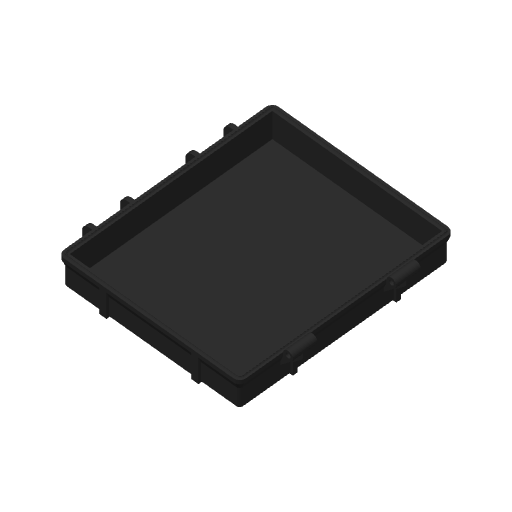
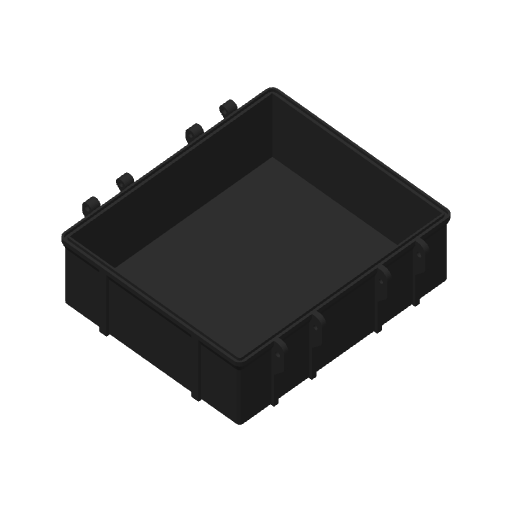
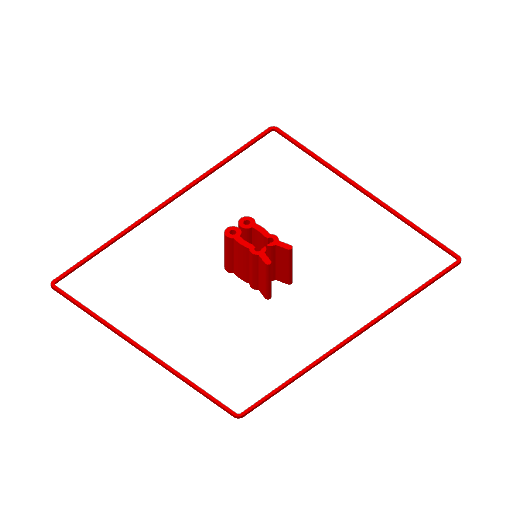
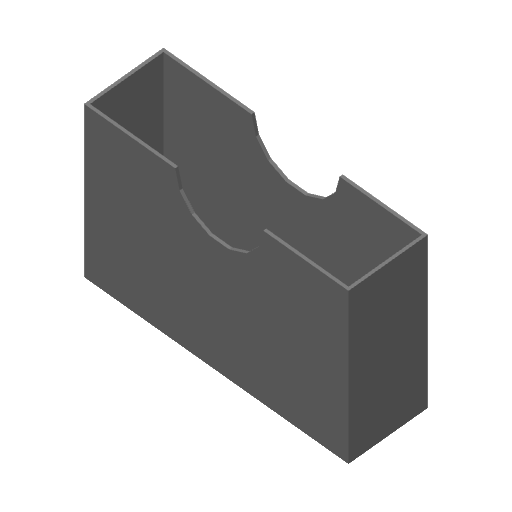
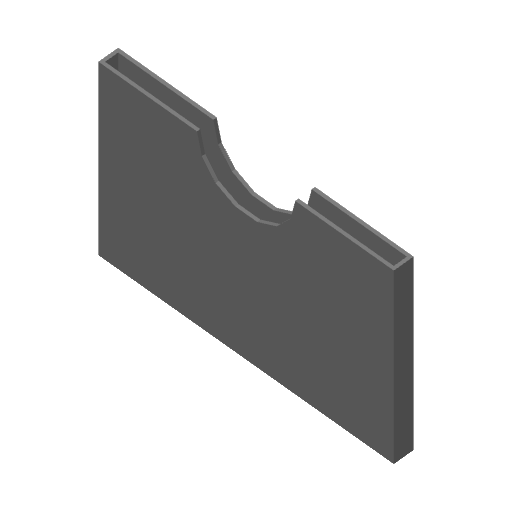
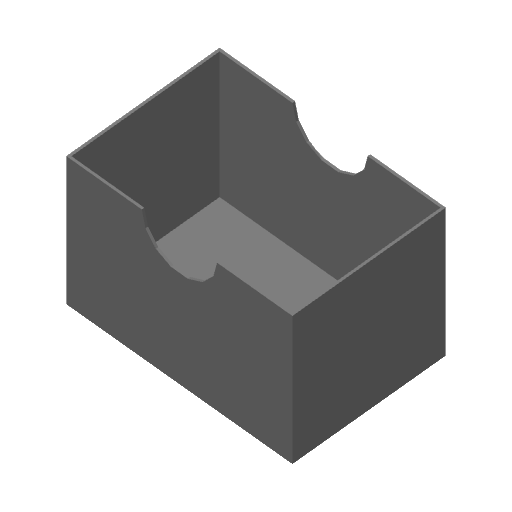
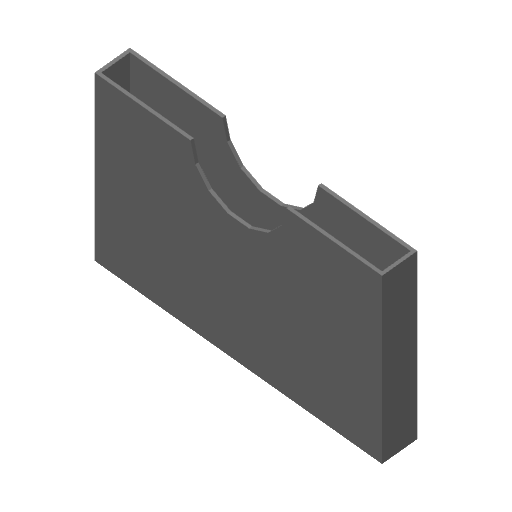
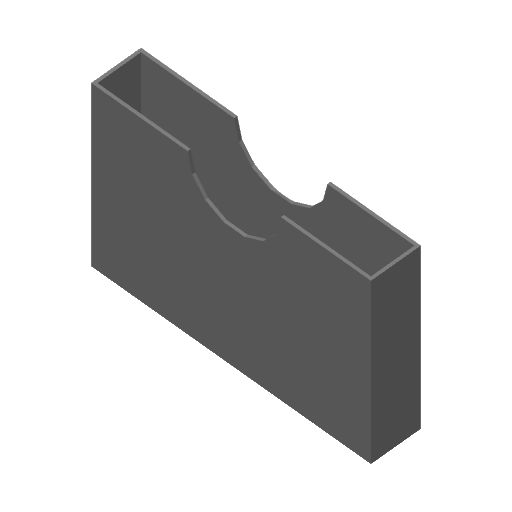
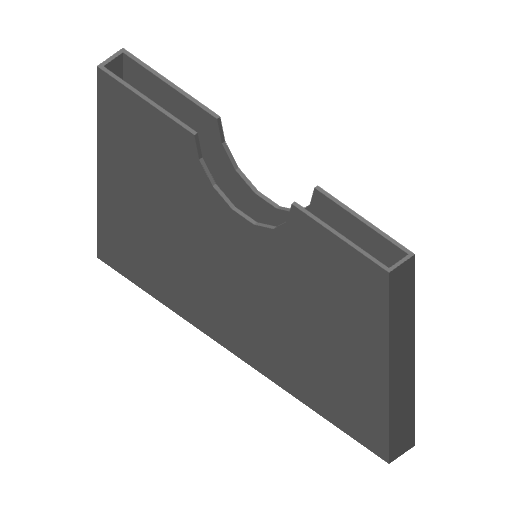
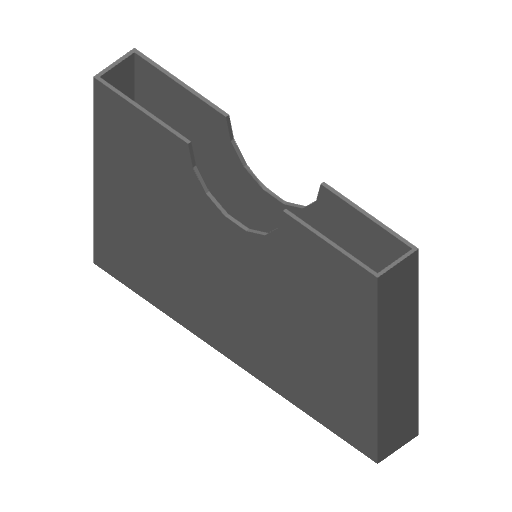
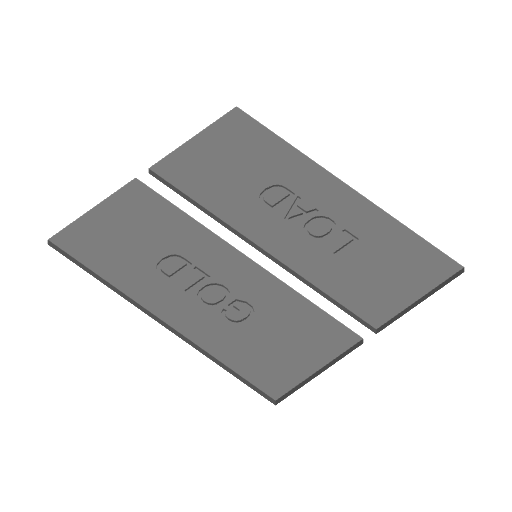
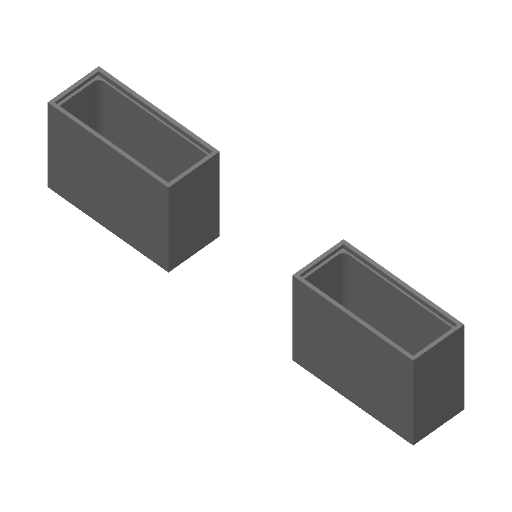
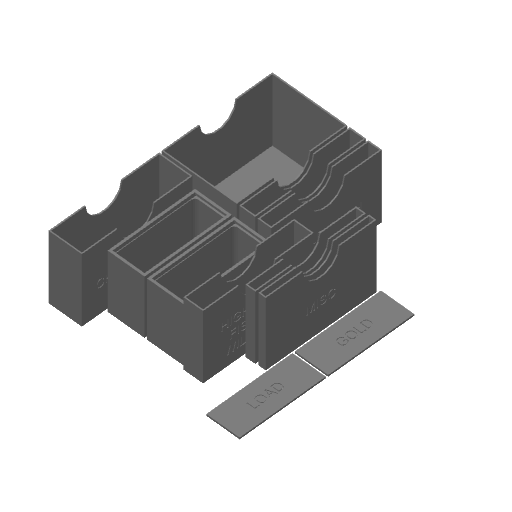
Albi Bang! box storage and dividers.
I was looking for some good dividers and storage box for card game Bang! and I couldn't find any nice looking. So I found Rugged box, which I am now using as storage for nearly everything and created this storage box for Bang! cards.
Everything should be in right orientation. You have to print everything once, only Pieces and Latch have to be printed two times.
You can print this with a single extruder with manual filament changes, or MMU (or Bambu AMS).
I included a Prusa Slicer Project file for the MK4 with InputShaper with manual filament change. You can easily adapt this to any other printer.
For completion you will need 6x M3x30 screws.
Printed with PLA, 0,2 layer height, 04 nozzle.
Colour change order for manual swaps of the Bang_Box_Lid.3mf:
1. Background first (Grey)
2. Outline (Black)
3. Bang logo (Red)
Then it repeats for the second layer starting with the red color, already in the nozzle.
5. Bang logo (Red)
6. Background (Grey)
7. Outline (Black)
8. Rest of the lid (Grey)
Multi-Colour instructions with manual filament change:
- Use my .3mf file for the Prusa MK4 with InputShaper
OR
- Set the printer up: ( Source )
- In "Printer Settings"-->"General":
- Set "Extruders" to the desired number of colours
- Enable "Single Extruder Multi Material"
- In "Printer Settings"-->"Single extruder MM setup":
- Set "Cooling tube position" to 10.
- Set "Filament parking position" to 0.
- Set "Extra loading distance" to 0.
- These settings eliminate the filament getting retracted into the heatsink section and possibly jamming there and eliminating the big blob created in the wipe tower after changing filaments. I think the original values are appropriate for a physical MMU(2) where the filament needs to be moved between the Bowden tube and the extruder tip but does the wrong thing for manual colour changes.
- In "Print Settings"-->"Wipe tower", disable "Prime all printing extruders". Since we're manually changing filaments, there's no need to do this.
- In the "Printer Settings"-->"Custom G-code"-->"Tool change G-code" section, put the following: {if layer_num >= 0}M600 ; change to filament for extruder {next_extruder + 1}{endif}
- Import the Lid.stl and split it into parts
- Adjust the colours of the box and font
- Send it to the printer and enjoy =)
Please leave a like and show me your make! =)
 BANG! 2002
Lift the Lid
BANG! 2002
Lift the Lid
Cover Colors
 BANG! Legends 2024
/pic8546058.jpg) BANG! Most Wanted 2024
BANG! Most Wanted 2024
/pic7163380.jpg) BANG!: Emiliano 2022
BANG!: Emiliano 2022
/pic6960411.png) BANG! The Great Train Robbery 2021
3
BANG! The Great Train Robbery 2021
3
 BANG! Armed & Dangerous 2017
4
BANG! Armed & Dangerous 2017
4
Show 13 more
 BANG! Expansion Pack 2015
 BANG! High Noon/A Fistful of Cards 2014
2
BANG! High Noon/A Fistful of Cards 2014
2
 BANG! Gold Rush 2011
9
BANG! Gold Rush 2011
9
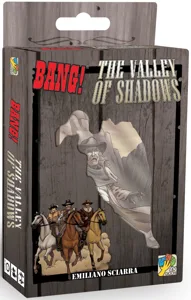 BANG! The Valley of Shadows 2011
4
BANG! The Valley of Shadows 2011
4
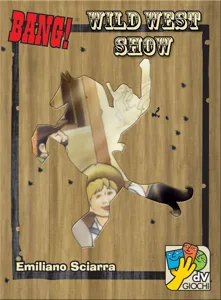 BANG! Wild West Show 2010
5
BANG! Wild West Show 2010
5
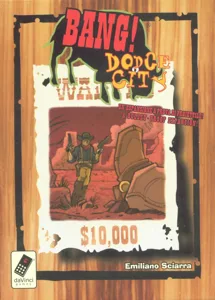 BANG! Dodge City with High Noon expansion 2008
1
BANG! Dodge City with High Noon expansion 2008
1
 BANG! Claus "The Saint" 2007
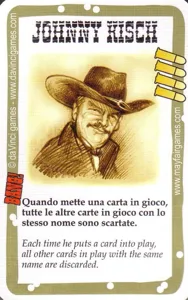 BANG! Johnny Kisch 2007
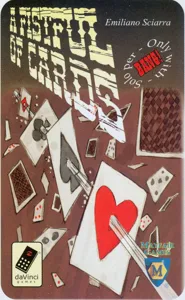 BANG! A Fistful of Cards 2005
6
BANG! A Fistful of Cards 2005
6
/pic86630.jpg) BANG! Face Off 2005
BANG! Face Off 2005
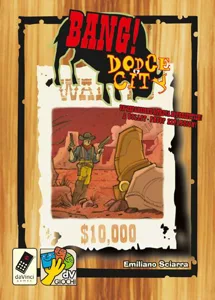 BANG! Dodge City 2004
10
BANG! Dodge City 2004
10
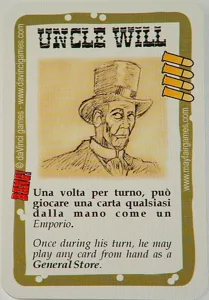 BANG! Uncle Will 2004
 BANG! High Noon 2003
12
BANG! High Noon 2003
12