Log in to join the conversation.
Evergreen + 3 Expansions Compatible Board Game Insert
Hold Evergreen plus 3 expansions in the base box! Vertical friendly and sleeve compatible: pictured with Sleeve Kings Card Game - Standard (63.5x88mm) or Perfect fit.
This is a modular insert, I designed it for two expansions and then redesigned for three. The two expansion files are included in a separate folder and is shown in the last three pictures. Feel free to modify how you like! 3 Skinny Boxes = 2 normal size boxes.
I've also included a printable pdf packing guide you can keep in the box.
PRINTING INSTRUCTIONS for base plus 3 expansions:
- Print 3 Bits Box Half
- Print 3 Skinny Box
- Print 2 Sprouts-Trees Boxes
- Print 2 Sprouts-Trees Lid
- Print 1 Cards A
- Print 1 Cards B
- Print 2 Tab A and Tab B
- Print 1 Tab C
- Print 1 of each other lid
TIPS:
Notched Lids : The lids have small notches to align the lid closed. They should be slightly loose and snap shut with a click, and shouldn’t fall out if shaken. If the lid is too tight you can lightly sand the edges until fit. If too loose, reprint and increase the size by .1 or .2mm in the long direction only.
Layer Height Color Change: The lids are all designed to work for color change at layer height. In your slicer you can add a pause/color change at the appropriate layer. This is a different process depending on the slicer, but usually follows these steps. Slice the object, then drag until you reach the layer you want to change color. Right click on the layer bar and select “Add Color Change” or “Change Filament”. Reslice the object and check to be sure you have selected the correct layer. Your printer will either pause and walk you through a color change, or automatically change color.
Multicolor printing: The lids are also designed to work with multicolor printing. In your slicer right click the object and select Split>to parts . Select the colors for printing. PRO TIP: first make the entire object the color of the design and then you only have to change the color of the main piece instead of every small piece.
Happy Gaming!
_______________________________________________________________________________________
Check out all my free designs here on Printables! If you want to support my work and all of the free designs I bring to the community consider buying something from my Etsy shop or my Printables Store .
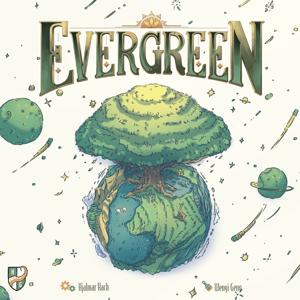 Evergreen 2022
Lift the Lid
Evergreen 2022
Lift the Lid
Cover Colors
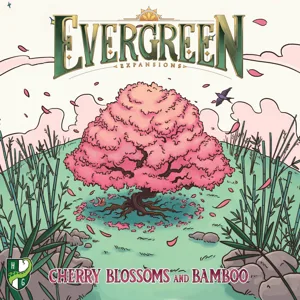 Evergreen: Cherry Blossoms and Bamboo 2025
4
✔
Evergreen: Cherry Blossoms and Bamboo 2025
4
✔
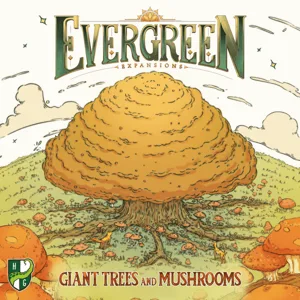 Evergreen: Giant Trees and Mushrooms 2024
6
✔
Evergreen: Giant Trees and Mushrooms 2024
6
✔
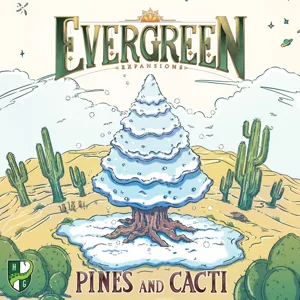 Evergreen: Pines and Cacti 2023
5
Evergreen: Pines and Cacti 2023
5